Tidying a PDF Before You Submit It: Page Order, Rotation, Deletion, Blank Pages and Sending It to OCR
A pre-submission routine for scanned or received PDFs. How to use the Organize tool to reorder pages, rotate by 90°, delete unwanted pages, insert blank A4 pages and undo, what the output is called, and how to hand the finished file to the OCR app for a searchable PDF or plain text.
- Published
- Updated
PDFs that come out of a scanner or office copier are often upside down, contain blank back sides, or have pages in the wrong order. Submit one as-is and the reader has to rotate pages to read it; get the page count wrong and the form may be sent back. The Organize tool in Mandumon PDF is for fixing exactly this kind of file inside the browser, and once you are done the ‘Extract text (OCR)’ button passes the result straight to the OCR app. This guide collects the steps worth doing right before you submit.
Checklist before you start
- Orientation: are there landscape scans or pages that went in upside down?
- Unwanted pages: blank backs, mis-scans, pages scanned twice
- Order: do cover, contents, body and attachments match what is required?
- Page count: if the rules say ‘even number of pages’, do you need a blank page?
- Several files: do separately received documents need to become one file? (Merge tool)
- Text search: is it a scanned PDF where text cannot be selected? (OCR)
Using the Organize tool, step by step
Organize (/organize/) accepts one PDF. You get a grid of thumbnails labelled with the original page numbers; thumbnails render lazily as they scroll into view, at most two at a time. All edits happen in memory, and nothing is written until you press Save.
- Select or drag in the PDF. If it has an open password, enter it.
- Reorder: drag a thumbnail, or use each page's forward and back buttons.
- Rotate: press ‘Rotate 90° clockwise’ on a page. Each press turns it another 90°, so an upside-down page needs two presses and a page lying on its left side needs three. Any rotation already stored in the original PDF is kept, and yours is added on top.
- Delete: press the delete button on pages you do not need. The original numbers on the thumbnails do not change, so you can always tell which pages were removed.
- Blank pages: use ‘Insert blank page after’ on a page, or the ‘Add blank page (A4)’ button at the top to append one at the end. Blank pages are 595.28×841.89 pt (portrait A4) and can be rotated.
- Press Create PDF, check the page count and file size, then Download. The output is named ‘original_organized.pdf’.
Undo and edit history
Undo reverses reorders, rotations, deletions and insertions one step at a time, so an accidental deletion is recovered instantly. Loading a new file resets the history; switching between tabs keeps the file and your edits. If you delete every page, saving is blocked until you undo or add a blank page. Any edit after a result has been produced discards that result, so make sure you are at the final state before you download.
Typical clean-ups
Blank back sides from duplex scanning
Find the white pages in the thumbnail grid and delete them. For very long documents you could export 72 dpi thumbnails with PDF to Images and skim them in a folder, but scrolling the grid is usually faster. Deleting, undoing once to double-check, then deleting again is a cheap way to avoid mistakes.
Landscape pages mixed in
Leave genuinely landscape pages such as tables or drawings alone and rotate only the portrait documents that were scanned sideways. Rotation is stored as a page property (the Rotate value), so there is no quality loss, and viewers orient the page correctly when printing.
Combining several documents and fixing the page count
- In Merge, add the document PDFs and any photos (an ID copy, for example) in order and download ‘firstfile_merged.pdf’.
- Load that file in Organize, fix orientation and order, and insert a blank page after any odd-length section to make it even.
- The result is automatically named ‘…_merged_organized.pdf’, so rename it to whatever the recipient requires after downloading.
Getting the text out: handing the PDF to the OCR app
A scanned PDF looks like text but is really a picture, so it cannot be searched or copied. The PDF app contains no OCR engine of its own. Instead, every tool that holds a file has an ‘Extract text (OCR)’ button that passes the file to the OCR app (ocr.mandumon.com). Merge sends its result PDF; Split, Organize and PDF to Images send the loaded PDF, or their result if one exists.
- Press ‘Extract text (OCR)’. The OCR app opens in a new tab. If the browser blocks the pop-up you are asked to allow it and press again.
- When the OCR tab signals it is ready, the PDF app hands over the file using a tab-to-tab message (postMessage). No server is involved. If the ready signal does not arrive within 10 seconds the transfer is abandoned and you are asked to retry.
- Files up to 200 MB can be transferred. Split larger files first.
- In the OCR app, Auto mode extracts the text layer from pages that have one and runs OCR only on image-only pages. Copy the result as text, or use ‘Download as searchable PDF’ to add an invisible text layer while keeping the original image quality.
What this app does not do
- Shrink files: there is no image recompression. If photos are the cause, reduce them in the Image app before making the PDF. Deleting pages or splitting still reduces size by removing content.
- Edit text: it is not a text editor. It works at the page level only.
- Add a password: there is no option to protect the output.
- Recover passwords: you can enter a password you know to process your own file, but it will not find one you do not have.
Measured: how much each clean-up changes the file size
To answer "does deleting pages make the file smaller?" with numbers, we ran the PDF app's own processing code. Six PNGs from this site's repository (352.3, 312.2, 343.4, 336.3, 185.6 and 88.1 KB) went through Images to PDF to make a 6-page A4 PDF with narrow margins, 1,583,799 bytes. We then saved it through Organize in several ways.
- Reversing the order, rotating every page 90°, or saving with no change: 59 to 64 bytes larger than the original, effectively the same. Rotation only changes a page property.
- Inserting one blank page: 7 pages, and only 178 bytes more.
- Deleting page 6, which held the 88.1 KB PNG: 60,122 bytes smaller, less than the original image file.
- Deleting page 1, which held the 352.3 KB PNG: 474,498 bytes smaller, down to 1,109,301 bytes. This time the saving was larger than the original image file.
- Deleting pages 1 and 2 together left 4 pages and 827,416 bytes, about 52% of the original.
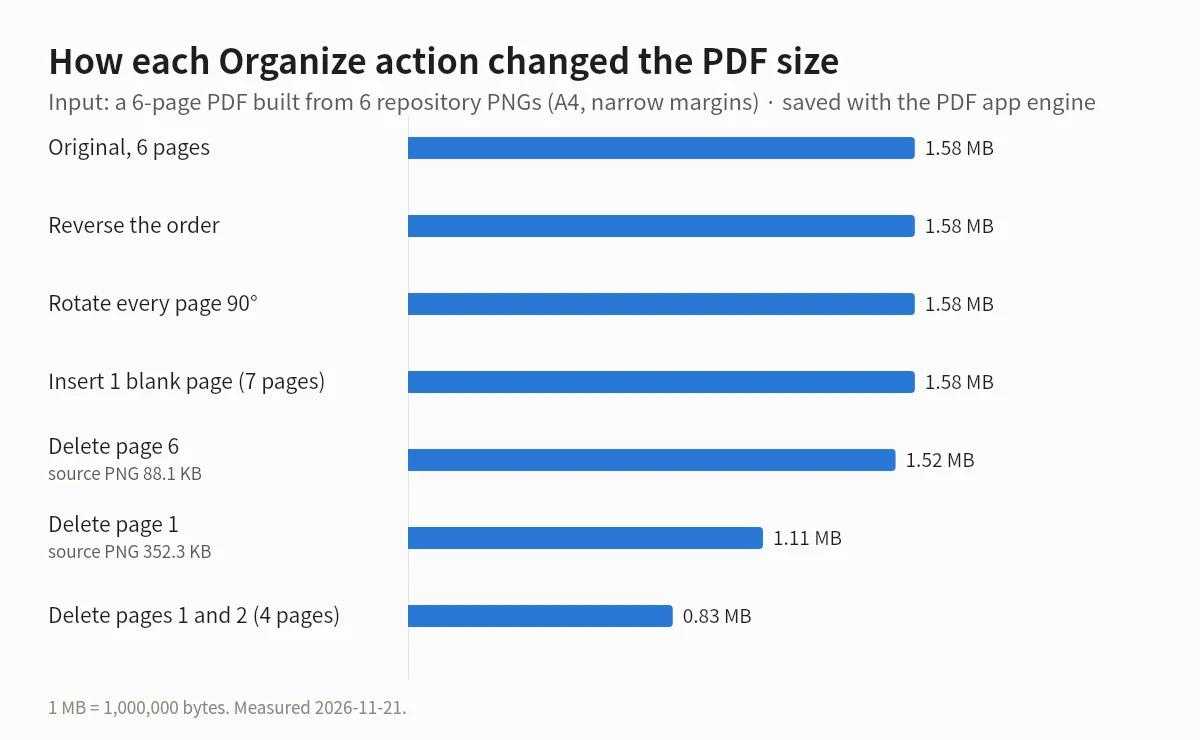
What surprised us is that deleting a page did not remove the size of the original image file. A PDF re-compresses images in its own way, so the same PNG can take more or less room inside the PDF than on disk. If you have to meet a size limit, check the saved result after deleting pages, and if photos are the cause, shrink them in the Image app before you make the PDF.
Common mistakes and fixes
- The saved page still looks sideways: a few viewers ignore the PDF Rotate property. Browser built-in viewers and most desktop viewers honour it, so check in another viewer.
- A blank page landed portrait between landscape pages: blank pages default to portrait A4. Insert it, then press rotate to make it landscape.
- The OCR tab does not open: disable the pop-up blocker and press again. Some mobile browsers only allow new tabs immediately after a tap.
- I closed the PDF tab after sending to OCR: that is fine; the file is already in the OCR tab. Closing the OCR tab, however, means sending again.
- A refresh wiped my edits: files and history live only in memory. Save once midway through long jobs.
FAQ
Is the original file changed?
No. The browser can only read the file you picked; it cannot modify it. The result is always a new file named ‘original_organized.pdf’.
Does deleting pages make the file smaller?
Usually yes, because images and fonts used only on those pages are dropped. If several pages share resources the saving can be smaller than you expect.
Can I organize long documents?
There is no fixed limit; saving 100-page files is part of the test suite. Because only visible thumbnails are rendered the grid stays responsive, but files over 500 MB trigger a memory warning.