Merge and Split PDFs in Your Browser Without Uploading: Page Ranges, ZIP Output and Password-Protected Files
A step-by-step guide to combining several PDFs and photos into one file, and pulling only the pages you need out of a PDF. Covers the range syntax (1-3, 5, 8-), output file names, how password-protected PDFs are handled and what the 500 MB warning actually means.
- Published
- Updated
When you need to staple three contracts into one file, or pull pages 5 to 8 out of a 100-page report, the first worry is usually where you have to upload the document. Mandumon PDF (pdf.mandumon.com) does both merging and splitting inside the browser and never sends your files to a server. This guide walks through both tools in the order you actually use them, and spends most of its time on the places first-time users get stuck: the page range syntax, the output files, and encrypted PDFs. Every behaviour described here is taken from the app's code.
First, where do the files go?
The app runs its PDF libraries (pdf-lib and PDF.js) in a Web Worker inside your browser. Validation, page copying and ZIP creation all happen on your device; the only network traffic is downloading the program itself. That means a slow connection does not slow down processing, but the device's memory matters more as files grow. If the total exceeds 500 MB the app shows a warning that the device may run out of memory. This is a caution, not a hard cap, and there is no fixed page limit.
One consequence of keeping everything in memory: a page refresh, a language switch or closing the tab discards the files and any result. Switching between the Merge, Split and Organize tabs is fine, though. Each tab keeps its own files, options and result while you move around.
Merging PDFs, step by step
- Open the Merge tab (/merge/) on pdf.mandumon.com. It is also the default tool on the home page.
- Select or drag in your PDF files. You can mix in JPG, PNG, WebP, AVIF and HEIC/HEIF images, or paste an image from the clipboard. Each image becomes one page.
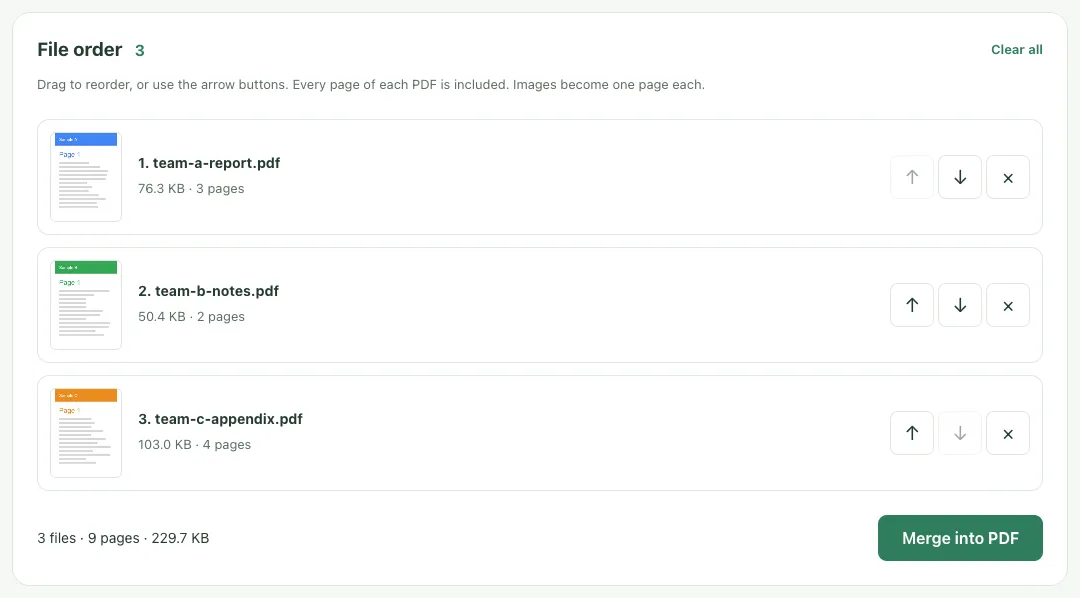
- Each file shows its page count and size. Encrypted, damaged or empty PDFs and unreadable images are flagged individually with a reason. The Merge button stays disabled until you remove the problem files or unlock the encrypted ones.
- Arrange the order using the first-page thumbnails: drag a file, or use the up/down buttons. Thumbnails render lazily, one at a time as they scroll into view, so a long list fills in gradually.
- Press Merge. Files are combined in list order, and the pages inside each PDF keep their original order. A progress bar and a Cancel button are shown.
- Check the resulting page count and file size, then press Download. Nothing downloads automatically. The file is named after the first file with _merged appended, for example contract_merged.pdf.
Splitting a PDF: three modes and when to use each
Split (/split/) accepts exactly one PDF. Images or multiple files are rejected with an explanation. There are three ways to split, and they suit different jobs.
- Page ranges: for pulling out specific pages. Each comma-separated range becomes one output PDF.
- Every page: one PDF per page. The result is a ZIP containing as many PDFs as there are pages.
- Every N pages: for cutting a 50-page document into five 10-page chunks. The leftover final chunk is included, and if N is larger than the page count you simply get one PDF.
Getting the range syntax right
Ranges use the same 1-based page numbers you see on screen, and both ends are inclusive. Typing ‘1-3, 5, 8-’ produces three files: pages 1 to 3, page 5, and page 8 through the last page. A trailing dash, as in ‘8-’, means ‘from page 8 to the end’.
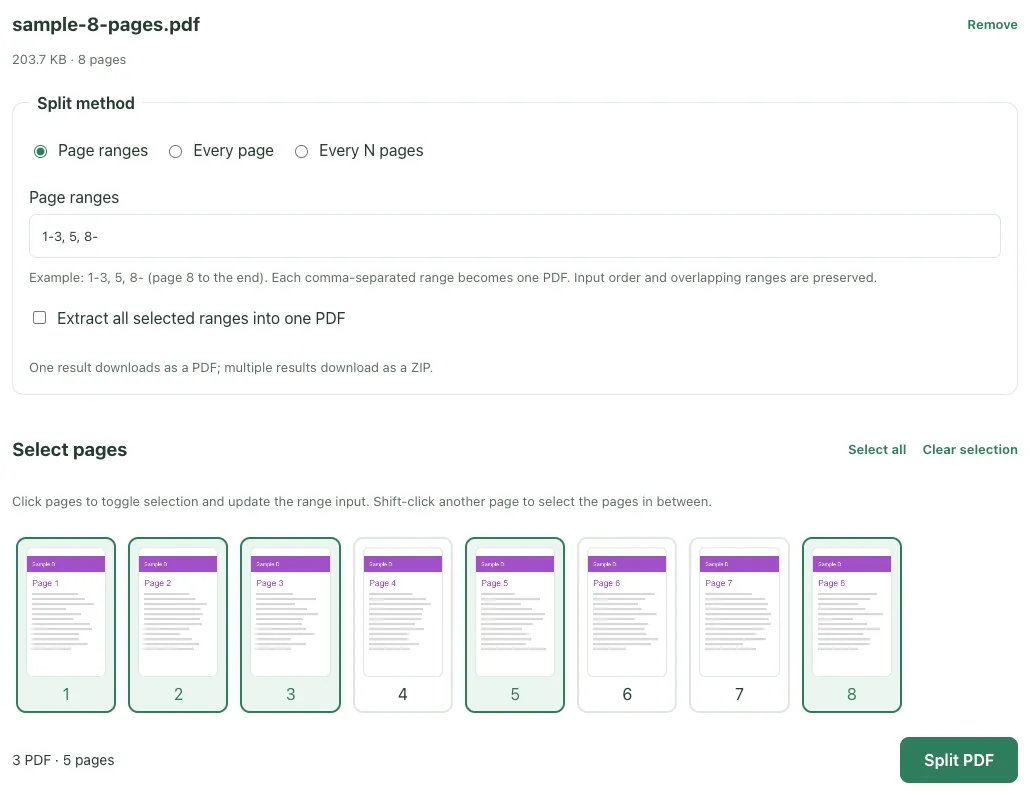
- Output order follows input order. ‘5, 1-3’ produces the page-5 file first.
- Duplicates and overlaps are allowed. ‘1-3, 2-4’ puts pages 2 and 3 into both results.
- Turn on ‘Extract all selected ranges into one PDF’ to put every range into a single file, in the order typed. Repeating a page includes it twice, which lets you do things like placing a cover page at both the front and the back.
- Empty input, empty comma items, decimals, reversed ranges (5-3), zero and numbers beyond the page count are caught before anything runs.
Picking pages from thumbnails
If typing ranges feels awkward, click the page thumbnails instead. The selection is compressed into consecutive ranges such as ‘1-3, 7, 10-12’ and written into the input box. Hold Shift and click another page to select everything in between, and there are Select all and Clear buttons. It works both ways: editing the text updates the highlighted thumbnails. Clicking a thumbnail while in Every page or Every N pages mode switches you to range mode automatically.
Output names and the ZIP
A single result is named ‘original_split_1.pdf’. Multiple results are packed into ‘original_split.zip’ containing original_split_1.pdf, original_split_2.pdf and so on. Characters that operating systems forbid in file names are stripped. The ZIP uses compression level 0 (store only), because PDFs are already compressed internally and recompressing them costs time for almost no gain. Expect the ZIP to be roughly the sum of the PDFs inside it.
What happens with password-protected PDFs
PDFs can carry two kinds of password. An open password must be entered before the file can be read at all. A permissions (owner) password lets the file open but blocks printing, copying or editing. The app tells the two apart when you add a file.
- Open password: a ‘PDF open password’ field appears. Enter it and confirm; the page count shows up and you can merge or split as usual. A wrong password produces a retry message.
- The password is held in memory only, never stored or transmitted, and the field is cleared as soon as you confirm.
- Permissions-only restrictions: the file opens without a password and a note explains that the restrictions will be removed when saving.
- The output PDF is always saved without a password. If you need protection again, apply it with another tool afterwards.
Recommended setups for common tasks
- Combining several scanned pages (images) with an existing PDF: drop both into Merge and arrange them. Each photo becomes a page. If you need a specific paper size or margins, convert the photos with the Images to PDF tool first, then merge.
- Making a submission excerpt from a long report: Split, range mode, with ‘Extract into one PDF’ on. For example ‘1, 4-9, 23’.
- Sending each colleague only their section: Every page, or a comma list of ranges. Download the ZIP and forward the individual files.
- Cutting a large PDF into email-sized pieces: Every N pages. Note that this app has no image recompression feature, so the only way it reduces size is by reducing the number of pages per file.
Common mistakes and fixes
- The Merge button will not activate: look for a file in the list with an error label. One encrypted, damaged or empty PDF blocks the whole job.
- ‘8-’ gives an error: if 8 is larger than the document's page count it is out of bounds. Check the page count shown at the top.
- The ZIP is bigger than the original: each output PDF gets its own copy of shared resources such as fonts, so the sum can exceed the source. Compression level 0 has no bearing on this; it is normal.
- Files vanished after a refresh: this is intended. Nothing is kept in browser storage. Add them again.
- A very large job never finishes on a phone: anything that triggers the 500 MB warning can fail on mobile memory. Reduce the file count or use a desktop.
FAQ
Is there a page or file size limit?
No fixed limit. What you can process depends on free memory on your device, and the app warns when the total reaches 500 MB. The automated tests exercise 100-page PDFs mixed with images.
Will the merged PDF be searchable?
Pages that already had a text layer keep it. Pages that are pure scanned images have no text, so after merging you can use the ‘Extract text (OCR)’ button to hand the file to the OCR app and produce a searchable PDF. Files up to 200 MB can be transferred.
Does splitting reduce quality?
No. Pages are not re-rendered; the original page objects are copied, so text, images and vector graphics are identical to the source. Only the file size may differ slightly because of structural overhead.