JPG vs PNG vs WebP vs AVIF: What They Are and How to Choose
Compare JPG, PNG, WebP and AVIF by lossy vs lossless compression, transparency, photos vs graphics, compatibility and encoding speed. Includes how the Image app's Format buttons work, why renaming a file is not converting it, the background color for transparent PNG to JPG, and a use-case guide.
- Published
- Updated
Sooner or later, when you shrink or upload an image, you have to decide whether to save it as JPG, PNG, WebP or AVIF. The file extensions look like variations on the same thing, but underneath they compress differently, handle transparency differently, and are accepted in different places. Pick the wrong one and a photo can turn mushy, a logo can get a black background, or an upload form can simply refuse your file. This guide compares the four formats side by side and gives you practical rules for choosing. At the end it also explains how to use the Format buttons in the Mandumon Image app.
Lossy vs lossless: the one idea to know first
Lossy compression throws away information that people are unlikely to notice, and in return it makes files much smaller. Lossless compression keeps every bit of the picture, so when you open the file again you get exactly the original pixels back. A ZIP file is a good mental model: unpack it and everything is identical.
With lossy formats, a lower quality setting gives a smaller file but also more blur and blocky artifacts. Discarded detail cannot be recovered, so saving a lossy file as lossy again slowly makes it worse. Lossless formats have no such problem, but for photos, where colors vary constantly, the files tend to become large.
In short, JPG is lossy and PNG is lossless. WebP and AVIF can do both, so the result depends on which mode was used when the file was saved, not only on the extension.
The four formats in one line each
- JPG (JPEG): the long-standing lossy format for photos. Its biggest strength is that nearly every device and website opens it. Its limitation is that it does not support transparency.
- PNG: a lossless format with transparency (an alpha channel). It suits logos, icons, drawings with text and screenshots, where edges are sharp. Saving a photo as PNG often produces a file far larger than the same photo as JPG.
- WebP: a newer format that supports lossy and lossless compression plus transparency. At comparable quality it is often smaller than JPG or PNG, which is why it is popular for web pages.
- AVIF: a more recent format that also supports lossy, lossless and transparency. It can often give the smallest file at comparable quality, but it encodes slowly and may be accepted in fewer places than WebP.
How much smaller a file gets depends heavily on the image itself, so it is hard to give a reliable percentage. The most dependable method is to save your own picture in a few formats and compare the sizes.
Photos vs graphics and screenshots
The best format depends on what the picture contains. Photos have smooth color gradients and fine texture, which suits lossy compression: lowering quality a little is barely visible, yet the file shrinks a lot. For photos, JPG or WebP is the normal choice, and AVIF if you want to squeeze further.
Logos, charts, screenshots full of text and flat illustrations are different. They have crisp edges and few colors. Lossy compression tends to leave fuzzy noise around letters, and PNG can end up smaller or about the same size while staying clean. PNG, or WebP in lossless mode, is the better fit.
Compatibility: where will the file open?
JPG and PNG have been around for so long that almost every browser, operating system, messenger, forum and document tool opens them. WebP and AVIF usually display in current browsers, but you should not assume that is true everywhere. Browser support keeps changing over time, and on top of that, upload sites and apps often set their own rules about which files they accept.
In practice, things like these can happen.
- An upload form, job application or submission site lists only JPG and PNG as allowed types, so a WebP or AVIF file is rejected.
- A messenger, email client or forum shows a WebP or AVIF file only as an attachment, without a preview.
- An older device, older operating system or photo viewer cannot open the format.
- A word processor or print shop tool that imports images was built mainly around JPG and PNG.
So if you do not yet know where the image will be used, JPG or PNG is the safest choice. Consider WebP or AVIF when you know the environment that will display the image, for example on your own website. And if the place you are uploading to lists the file types it allows, follow that list.
Encoding speed: why AVIF is slow
Formats also differ in how long it takes to create the file. The more efficient the compression, the more computation it needs, and AVIF is especially slow to encode. While writing this guide we measured it on an Apple M5 Max Mac with the same processing code and WebAssembly codecs as the Mandumon Image app. For one public-domain (CC0) phone photo from Wikimedia Commons, a 3024 by 4032 JPG of 2.76 MB, reduced with the Keep high quality method, JPG took about 8 seconds (694.3 KB) and WebP about 10 seconds (463.1 KB), while an automatic comparison that included AVIF took about 16 seconds and picked WebP (463.1 KB) for this photo.
That was one photo on one machine, so your numbers will differ with your device and picture. The trend, however, was clear: AVIF was noticeably slower than the others. That is why the Image app deliberately leaves AVIF out of its automatic comparison. If you process dozens of photos at once, the difference adds up to real waiting time.
How the Format buttons work in the Image app
In the How to reduce it section of the Image app you will find the Format buttons, in this order: Keep original, Auto, JPG, PNG, WebP and AVIF.
- Keep original (the default): saves in the same format as the file you added. This is the default because many places you upload to accept only JPG.
- Auto: creates both JPG and WebP and picks the smaller one. For images with transparency it compares only PNG and WebP. With Keep high quality, it chooses the smallest file that meets the same quality threshold and shows which format it picked in the result.
- JPG, PNG, WebP, AVIF: converts to exactly the format you choose. AVIF is not part of the automatic comparison, so you select it yourself when you want it.
- Reduce further with AVIF (slow, check site support): an extra button on the result card that appears when the result is not AVIF. It runs one more conversion to AVIF with your current settings, starting from the original.
The screen also shows this note: Converts to the selected format. Check whether your upload site requires JPG. If the destination is already decided, check which formats it accepts first, and when in doubt, Keep original or JPG is the safer setting. If you choose PNG, you will see a note that PNG is lossless, so the quality slider has no effect, and that you should choose WebP or JPG for smaller files.
Renaming a file is not converting it, and transparent PNG to JPG
A common misunderstanding is that renaming photo.png to photo.jpg turns it into a JPG. The extension is only a label. The data inside is still PNG. Some programs may open it anyway, but an upload site can inspect the contents and reject it, other programs may fail to open it, and the file does not get any smaller.
To really change formats, the image must be read and encoded again in the new format. That is what the Format buttons in the Image app do. As a result, converting to a lossy format can change the quality, and metadata such as location is not saved during re-encoding. The screen tells you so: Metadata, including location, is not saved. If the original file is used as it is, the app notes that its metadata remains too.
Converting a transparent PNG to JPG needs one more decision. JPG has no transparency, so something has to fill the empty areas. Without a setting, some tools turn transparent areas black, a common problem with logos and cut-out photos. When you convert an image with transparency to JPG, the Image app lets you pick a JPG background color, with white as the default, and shows this note: JPG does not support transparency. Transparent areas use this background color.
If the logo will sit on a dark background, pick a color that matches it instead of white. If you truly need transparency, save as PNG or WebP rather than JPG. For the same reason, after you remove a background in the Refine section, the app reminds you to save as PNG or WebP to keep transparency.
Measured: file size per format at the same quality bar
A quality number means something different in each encoder, so comparing "quality 75 against quality 75" is not fair. Instead we ran the Image app's Keep high quality search, which finds the lowest quality that passes both its checks (SSIM 0.985 on a reduced copy and a full-resolution detail check), separately for each format, and compared the smallest files that cleared the same bar. We used the same WebAssembly encoders as the app and three images that live in this site's repository.
- A smooth illustration (og-image.png, 1200×630): AVIF 10.8 KB, WebP 18.1 KB, JPG 28.9 KB. Lossless PNG was 343.5 KB.
- A grainy photo of a printed page (ocr-photo.png, 900×320): JPG 44.7 KB, WebP 65.2 KB, AVIF 65.6 KB. Here the oldest format, JPG, was the smallest. Lossless PNG was 187.7 KB.
- A logo with a transparent background (mandumon-512.png, 512×512): with the format on Auto, the app compared only PNG and WebP and chose WebP at quality 89, 45.0 KB. The lossless PNG optimization came out at 325.6 KB.
- Converting the same logo to JPG at quality 80 gave 34.8 KB, but every transparent pixel was filled with the white background color. Choosing JPG for its size alone throws the transparency away.
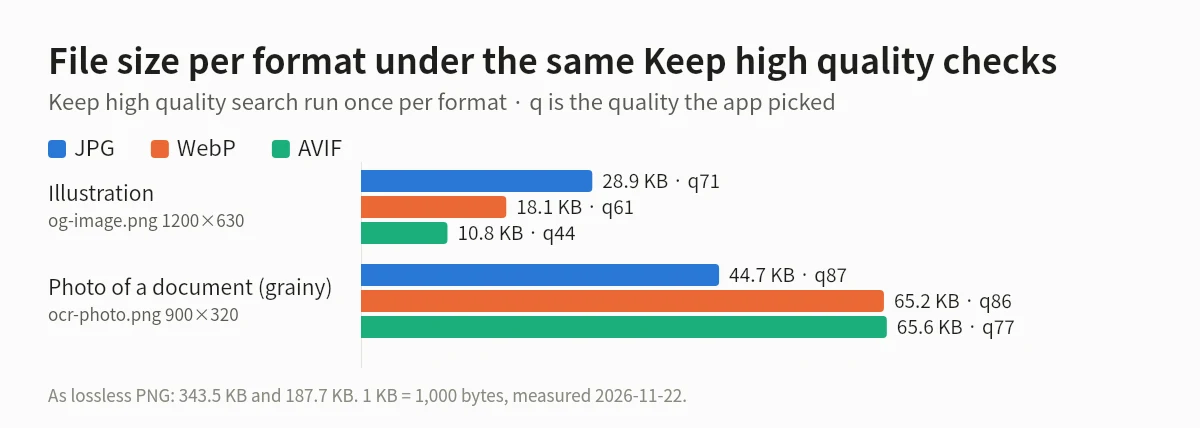
The idea that AVIF always wins did not survive the document photo. With that much grain, AVIF had to climb to quality 77 to clear the bar and ended up 20.9 KB larger than JPG. Which format wins depends on the picture, so treat the summary below as a starting point and compare your own file with Auto or the format buttons.
A quick guide by use case
Here is everything above boiled down by purpose. These are general rules, and instructions from the site you upload to come first.
- Not sure where it will be used, or a photo for an application: JPG. It opens almost everywhere.
- A photo for a blog or your own website: WebP. A good fit when you know how it will be displayed and want a smaller file.
- The smallest possible web photo: AVIF. Choose it yourself, and check the result, when you can accept slow encoding and narrower compatibility.
- Logos, icons and charts: PNG. Suits sharp edges and transparency.
- Screenshots with a lot of text: PNG, which keeps letters clean. If the size is a problem, compare WebP.
- Images that need a transparent background: PNG or WebP. JPG cannot do transparency.
- Images going to a print shop or document tool: JPG or PNG, since such tools may not support newer formats.
- No idea, just want it smaller: leave the format on Auto and reduce with Keep high quality.
If you have not settled on a format, add your photo to the Image app and click through the format buttons while watching the result size and the comparison slider. Photos are processed only on your device and are not sent to a server, so you can freely try several formats.
JPG, PNG, WebP and AVIF: the differences, and how this tool's Auto format chooses