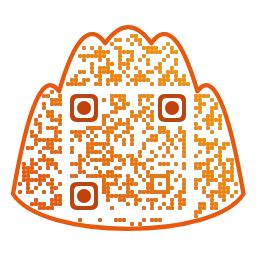
Will a Designed QR Code Still Scan?
Custom shapes, colors and logos can make a QR code stand out, but they can also break it. Learn how error correction, finder patterns, quiet zone, contrast and logo size affect scanning.
- Published
- Updated
A QR code shaped like a heart, filled with a gradient or carrying a logo in the middle gets noticed. The prettier it gets, though, the more likely a camera is to give up on it. The short answer is that a decorated code scans fine as long as you respect a few rules. This guide explains those rules and how to check your result.
Why a QR code can survive damage
QR codes include error correction, so the data can be restored even when part of the symbol is dirty or hidden. The standard (ISO/IEC 18004) defines four levels. According to DENSO WAVE, the inventor of the format, they can restore roughly 7% (L), 15% (M), 25% (Q) and 30% (H) of the codewords.
- L holds the most data but tolerates the least damage. It suits clean on-screen use.
- M is the common default.
- Q suits places where dirt or scratches are likely, and light decoration.
- H is the sturdiest, but the pattern becomes denser for the same content. Use it when you add a logo.
Three things you must not break
- Finder patterns: the three large squares in the corners. Cameras use them to locate the code and work out its orientation. You may round their corners, but never hide them or make them faint.
- Quiet zone: the empty margin around the code. It is generally cited as at least four modules wide on every side. Borders, frames or background patterns that intrude into it hurt recognition.
- Contrast: dark modules on a light background is the safe default. Pale pastel dots, or dots close to the background color, look nice to people but blurry to cameras. Keep the brightness difference large.
Inverting the colors (light dots on a dark background) is not read by some scanner apps. Unless you have a good reason, keep dark on light.
Adding a logo or an image
A center logo does not add anything for free. It covers some modules and spends your error-correction budget to do so. If the logo is too large, the damage exceeds what the code can recover and it stops scanning.
- Start small and only grow the logo as far as the code still scans reliably. A little clear padding around the logo helps keep the surrounding modules clean.
- Raise error correction to H whenever a logo is present.
- Painting a busy photo across the whole code tends to lower contrast. Choose a photo with strong light and dark areas.
- Make sure you have the right to use any image that is not yours.
Mandu QR handles part of this for you. Adding a logo raises error correction to H automatically, a warning appears when the contrast ratio drops below 4:1, and image QR codes are always generated at level H. A missing warning is still not a guarantee that every phone can read it, so do the tests below.
Test checklist before printing
- Scan the downloaded file, not the editor preview.
- Print one copy at the real final size first.
- Scan it with both iPhone and Android, with the built-in camera and with a separate scanner app. Older phones are a bonus.
- Test from the distance and angle where a person will actually stand or sit, under the real lighting.
- Confirm the page that opens is the one you intended. A successful scan and a correct destination are two different things.
Try it in Mandu QR
Mandu QR is a free tool that runs in your browser with no sign-up. You can make shaped QR codes (mandu, heart, couple and more), image QR codes that use a photo, framed codes with a caption, and Wi-Fi QR codes, then save them as PNG or SVG. What you type is not sent to a server. Start from a simple preset, add one decoration at a time, and scan the saved file after each change.
"QR Code" is a registered trademark of DENSO WAVE INCORPORATED.